Note: Only teachers with Manager permissions can deactivate / reactivate other accounts. Please contact your Account Manager or support@century.tech if you would like to update your CENTURY permissions.
Deactivating teacher accounts
If you deactivate a teacher, they will no longer be able to access their account on CENTURY.
To do so, follow these steps:
Go to your Class Admin tab.
Go to the Teachers tab.
Search and select the user whose information you wish to update.
Select the three dot icon to the right of their name, then select ‘Deactivate account’.
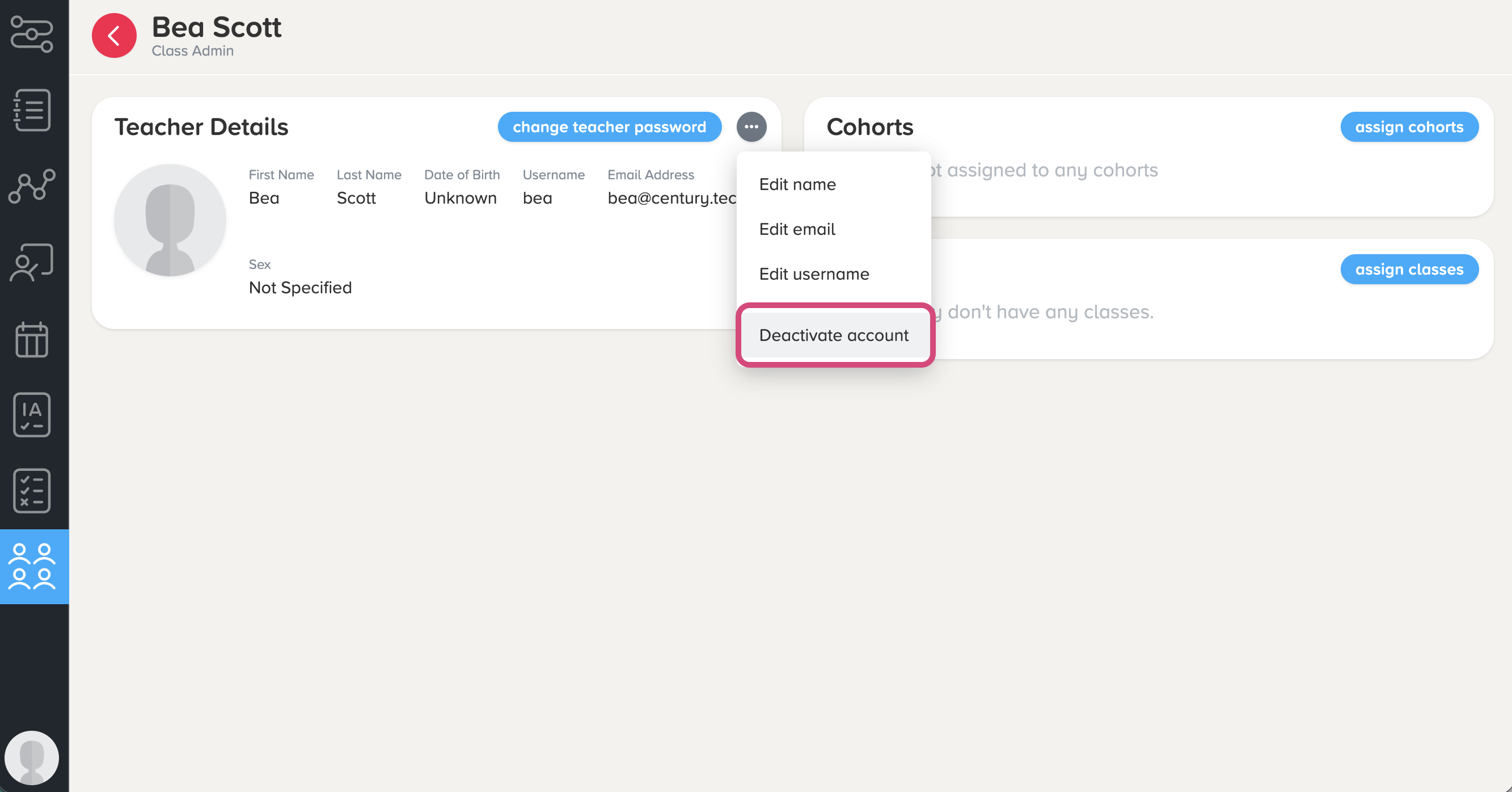
Note: You can also edit the user's name, email, and username from this menu.
5. The user's name should now include ‘[Deactivated]’. You also will no longer be able to edit any of the information on their profile or add them to classes.
Reactivating teacher accounts
To reactivate a teacher, simply click the ‘Reactivate account’ button on their account page.
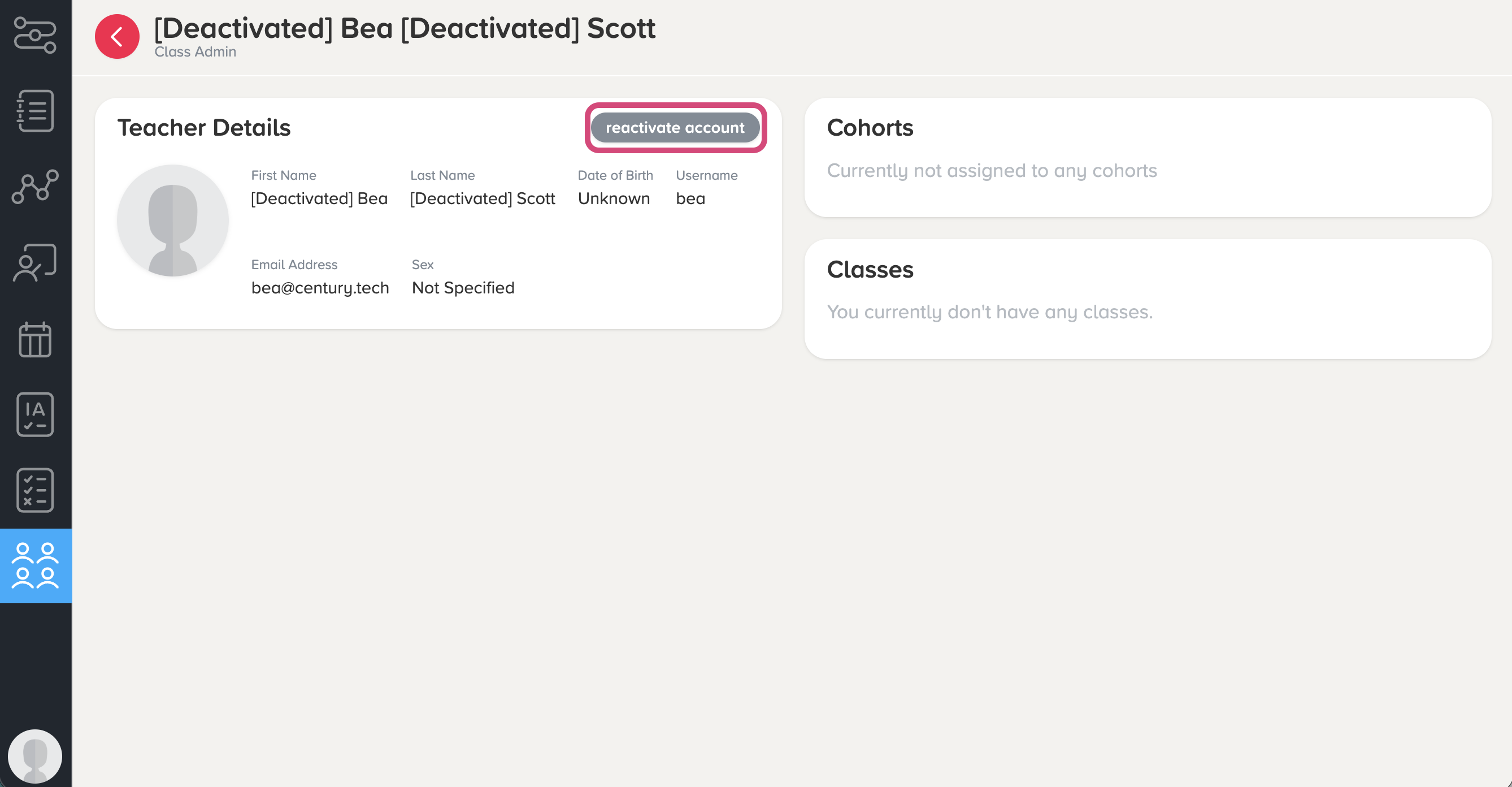
This will remove ‘[Deactivated]’ from their name, and enable them to log in to their account as usual.
Was this article helpful?
That’s Great!
Thank you for your feedback
Sorry! We couldn't be helpful
Thank you for your feedback
Feedback sent
We appreciate your effort and will try to fix the article