If you need to add a user onto CENTURY quickly or on an ad-hoc basis, use this method to manually create an account. We only recommend this method to add individual users. To mass upload many users at once, please read this help page for more information.
Note: You must have Manager access permissions on CENTURY in order to add new users.
How to onboard:
Students
To onboard an individual student, follow these steps:
Go to your Class Admin tab.
Select the class you wish to add the student to, or go to the Students tab.

Select ‘Create student account’.

Enter their first and last name, then select how the student will login.
Email or single sign-on:
Please ensure their email address is unique within your organisation.
Username:
Please enter their UPN/student number and ensure that it is unique within your organisation.
(Optional) Enter additional details such as date of birth, sex, and EAL status.
Note: We would appreciate it if you could share the student’s date of birth as this helps us to benchmark your students against their peers across CENTURY and provide you with further data insights.
Select ‘Create’.
- If you created the student's account from within a class, they will automatically be assigned to the class.
- If you created the account from the Students tab, you can now assign them to your existing classes.If you wish to add the student to other classes, follow the steps in this article.
Teachers
To onboard an individual teacher, follow these steps:
Go to your Class Admin tab, then select Teachers.
Click on the 'Create Teacher Account' button.
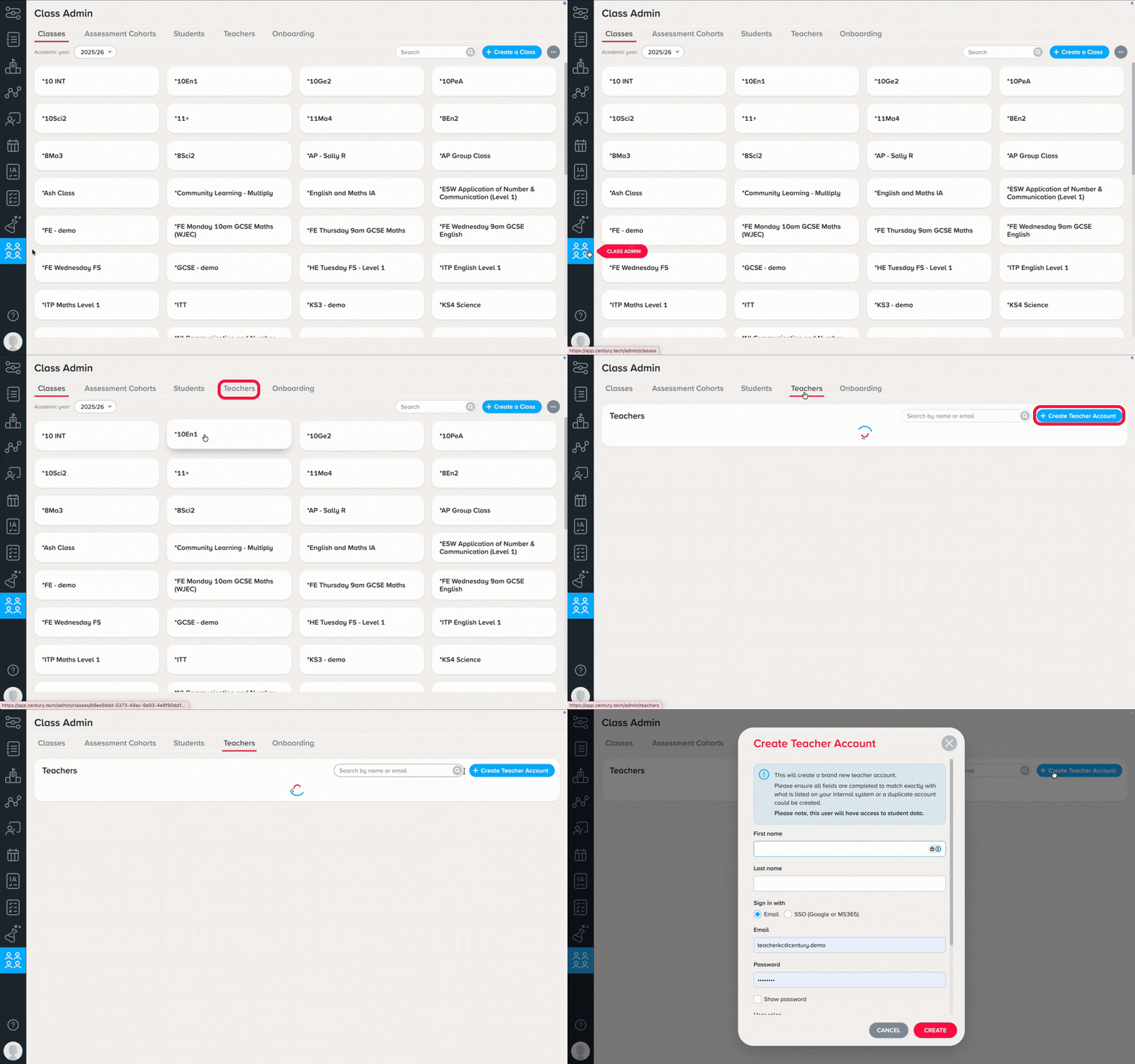
3. Enter their first and last name, select how the teacher will login, and set their account role(s).
Note: Please ensure their email address is unique within your organisation.
(Optional) Enter additional details such as date of birth and sex.
Click ‘Create’. The teacher's account will now be created and is ready to be assigned to classes.
Guardians
To onboard an individual guardian:
Go to Class Admin
Click on the Students tab, then search for and select the student
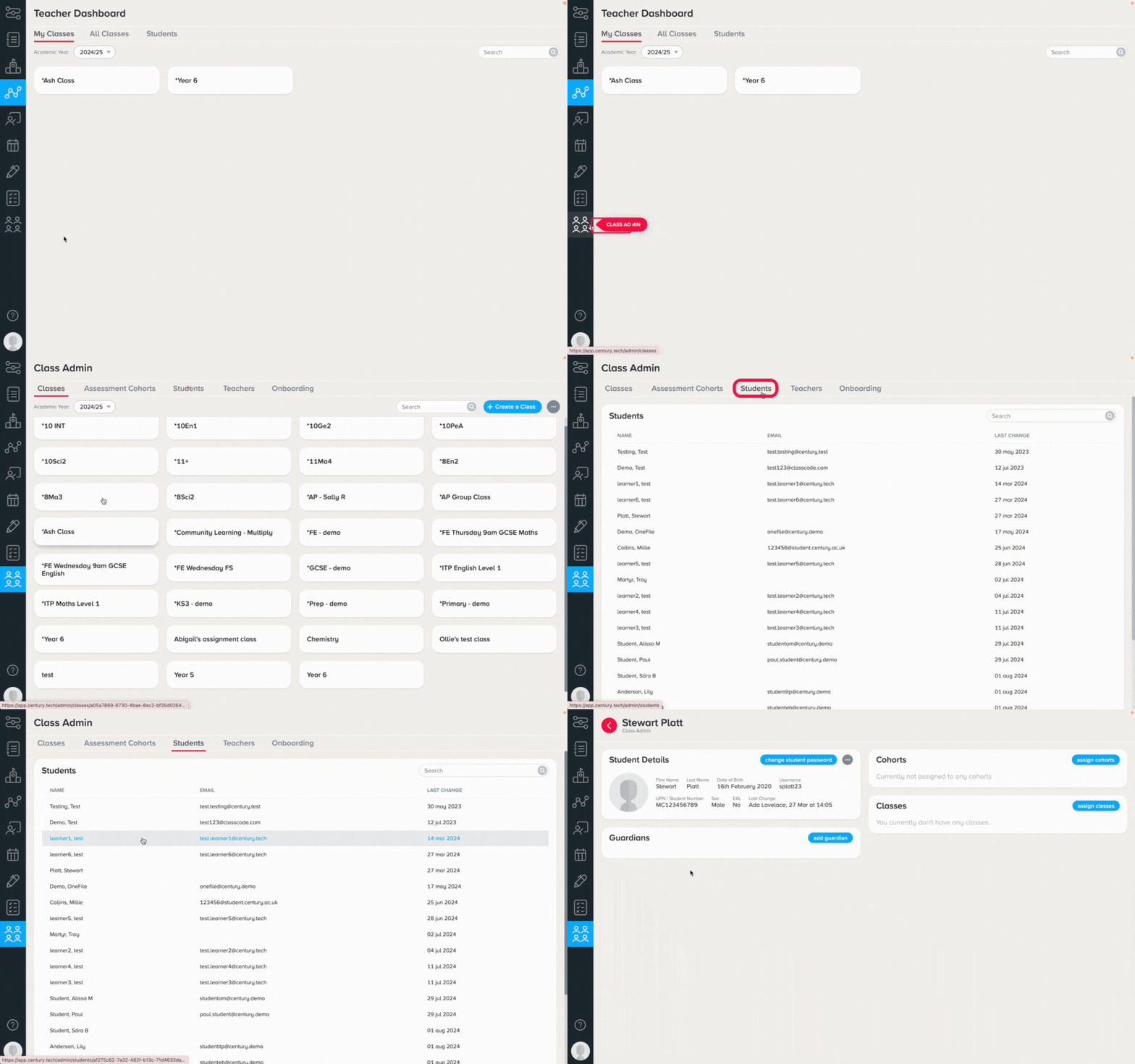
Select ‘Add guardian’
You will be prompted to add the guardian’s email address, then click ‘Add’
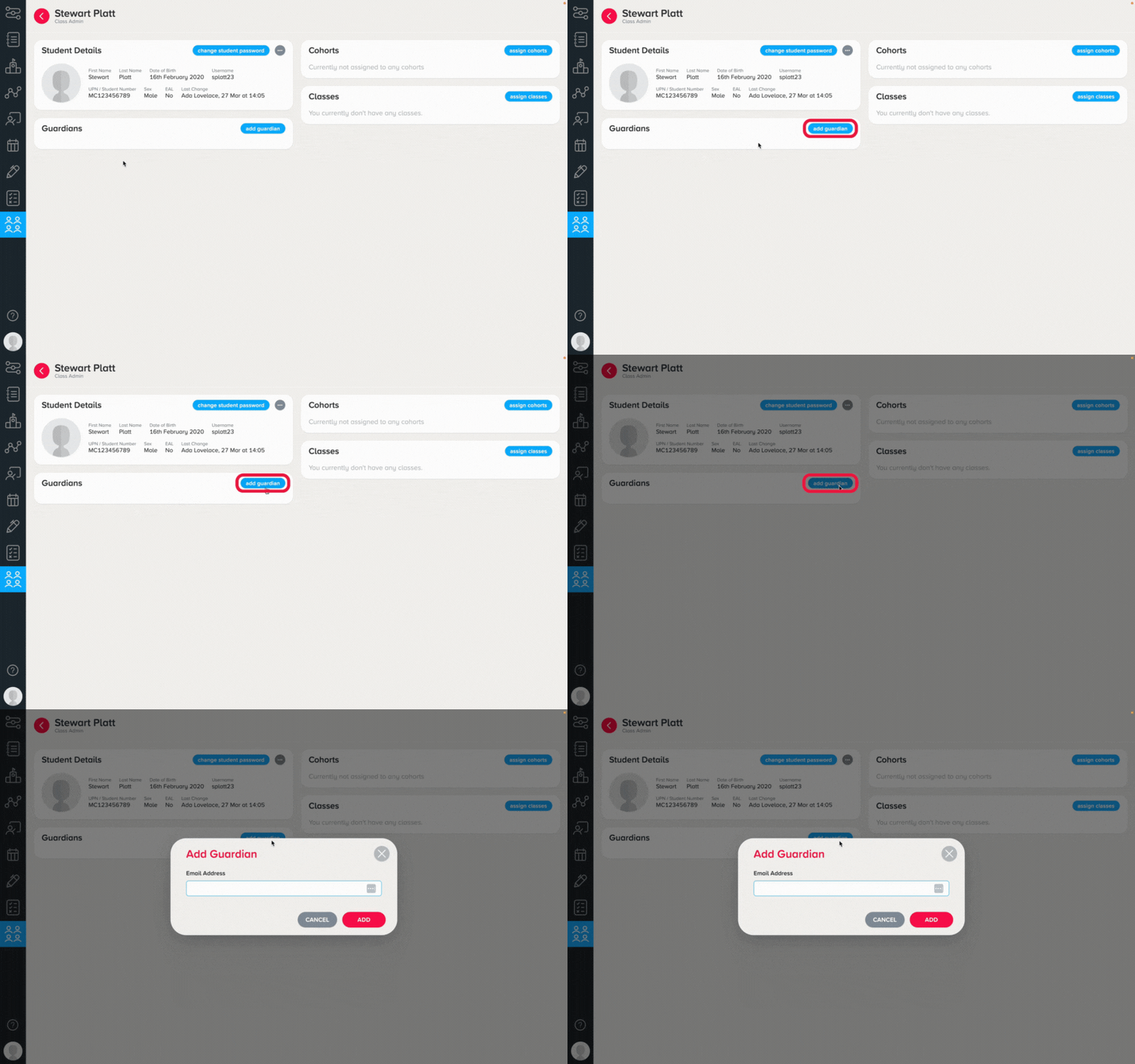
Enter their first and last name, then click ‘Add’
Guardians will receive an email from CENTURY to set up a password for their newly created account
Upon logging in, the guardian will be able to see their child/children's Dashboard
Please note:
Any learner can have a maximum of 2 guardians.
If the guardian has more than one child in your organisation, add their email address for any other children and they will receive an email to notify them of each addition.
Was this article helpful?
That’s Great!
Thank you for your feedback
Sorry! We couldn't be helpful
Thank you for your feedback
Feedback sent
We appreciate your effort and will try to fix the article